Workspace
The workspace is where you manage your organization's resources. The sidebar provides access to Projects, Teams, Members, Usage, and Billing. API keys are managed from each project's detail page.
Organization overview
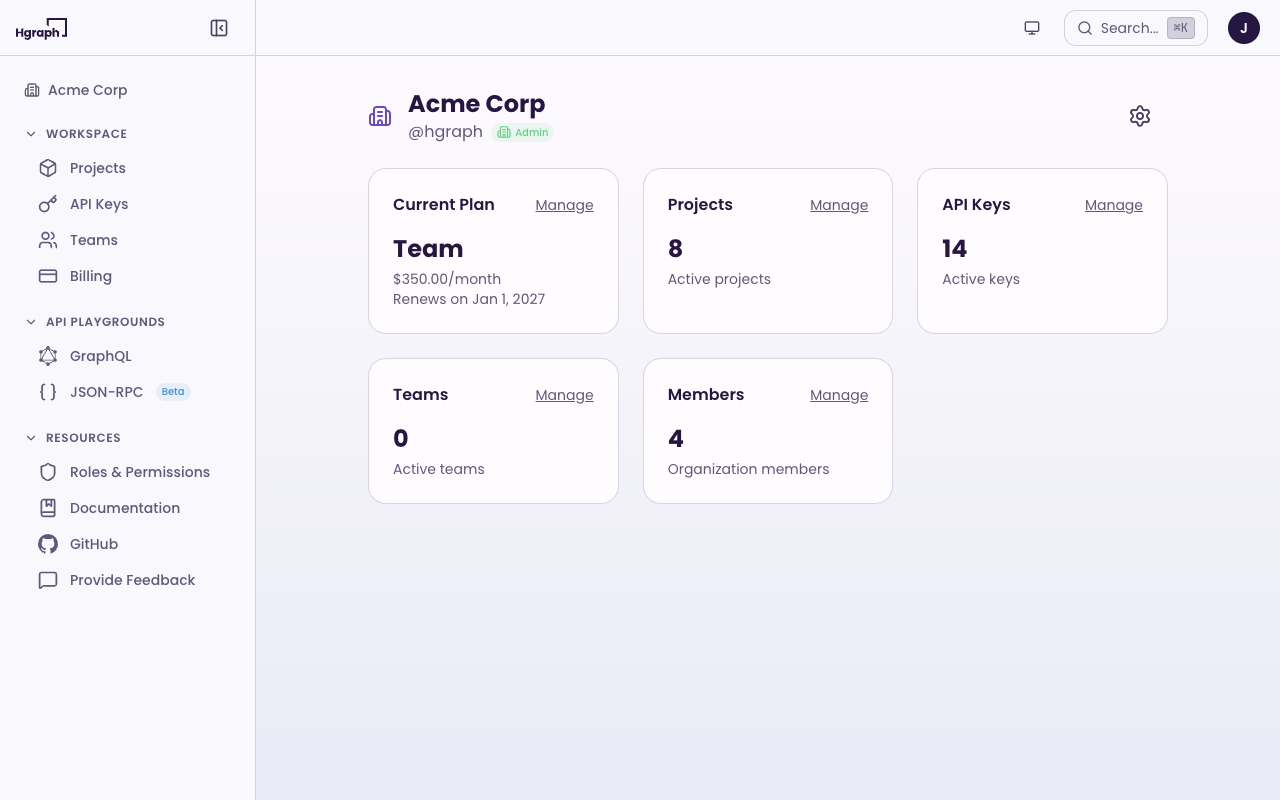
Your organization dashboard shows at a glance:
- Current Plan - your active subscription tier and renewal date
- Projects - number of active projects
- Teams - number of teams (Team plan and above)
- Members - number of organization members (Team plan and above)
Each card includes a Manage link to navigate directly to that section.
Organization settings (rename, change slug, delete) are accessible via the settings icon on the dashboard. Only Owners and Admins can modify organization settings.
Projects
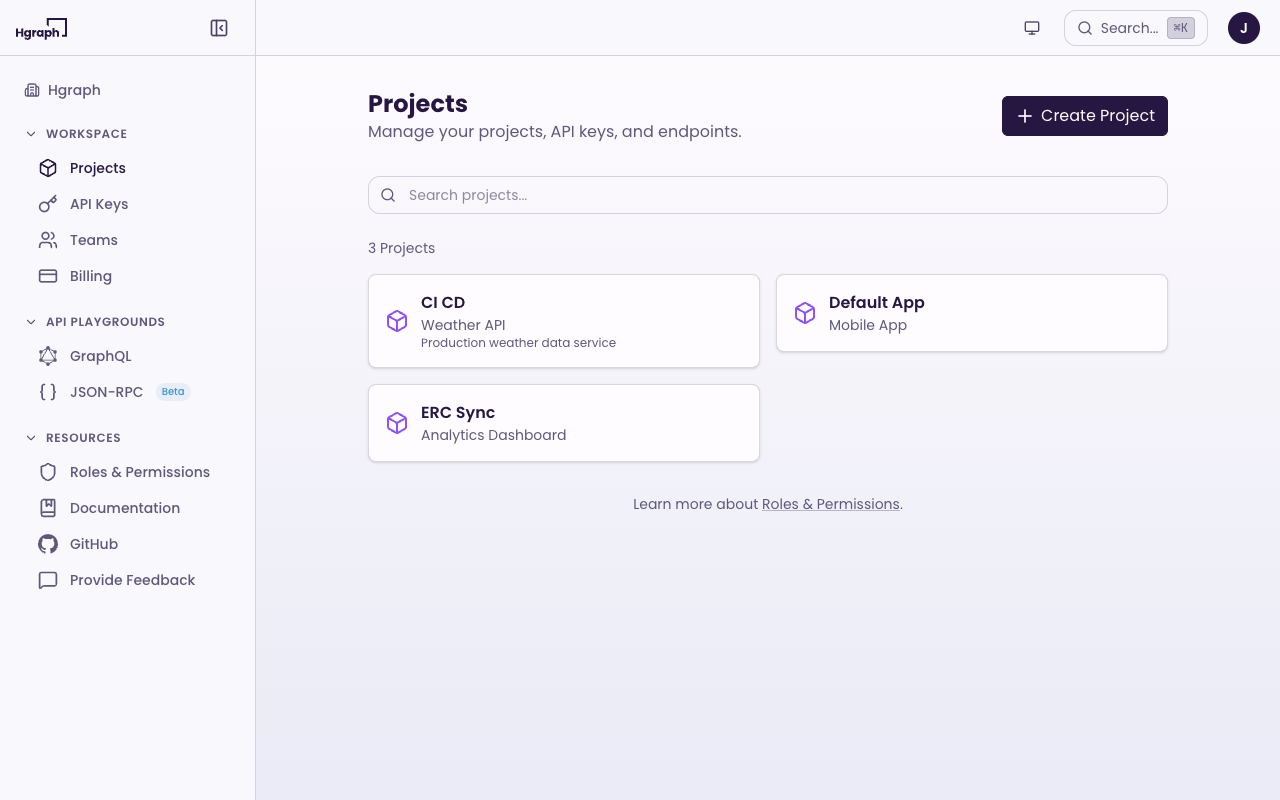
Projects organize your API keys and usage tracking within an organization. Use separate projects for different environments (production, staging) or different applications.
Create a project
- Go to Projects in the sidebar.
- Click Create Project.
- Enter a name, URL slug, and optional description.
- Click Create.
Project detail
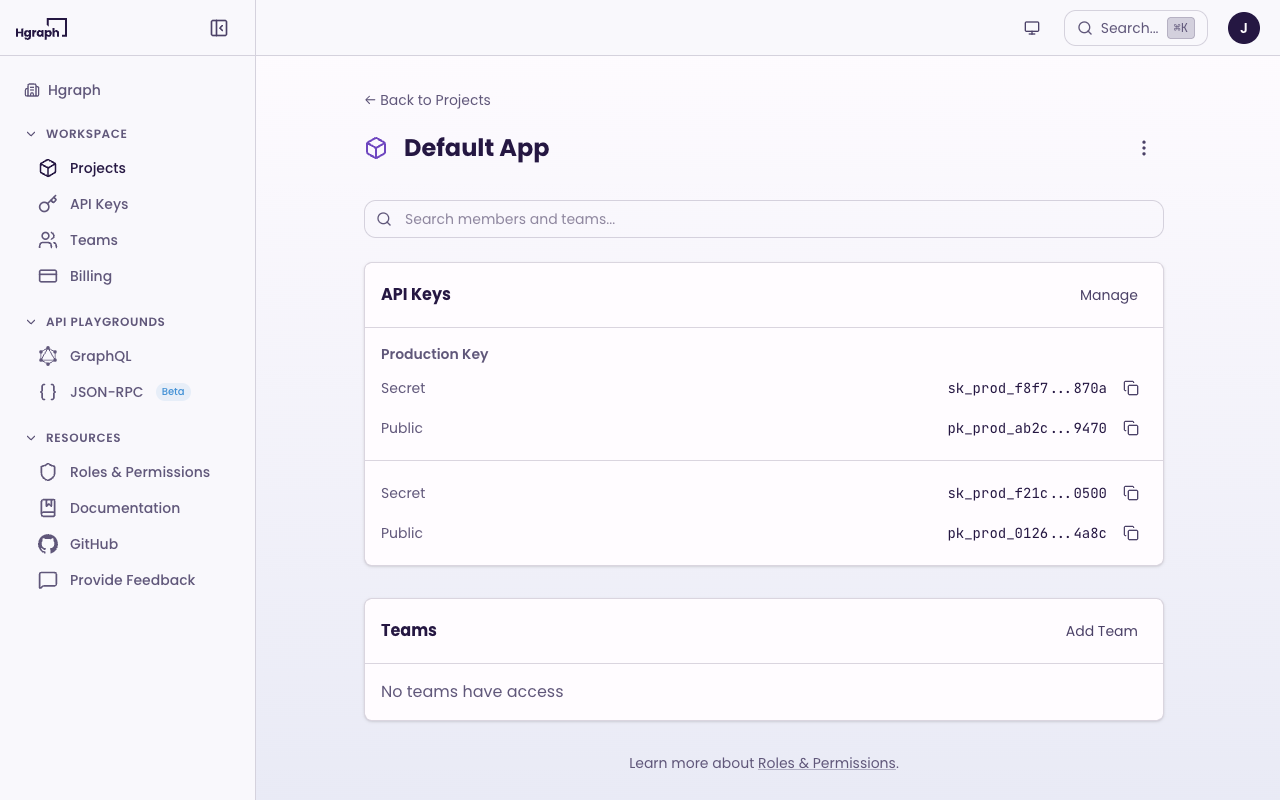
Click a project to view its detail page, where you can:
- Edit the project name and description
- View and manage project members
- View and manage the project's API keys
- Delete the project (Owner/Admin only)
How many projects you can create depends on your plan — see Rate Limits & Quotas.
API keys
API keys are scoped per-project and managed from the project's detail page.
Key values
Each API key has two values, a Publishable Key (pk_prod_) and a Secret Key (sk_prod_). Some older keys also carry a third Legacy value.
Despite their names, all of a key's values grant the same access: the same permissions, the same plan rate limits, and the same data. The Publishable Key is not restricted and is not safe to embed in client-side code, browser bundles, mobile apps, or browser extensions — anyone who extracts it has the same access your backend does.
Keep every key value server-side, store it in environment variables, and never commit it to a repository or paste it into a shared document.
Scoped, genuinely browser-safe publishable keys are planned. Until they ship, use a single key class and keep it on your server.
Create an API key
Your first organization, project, and API key are created for you when you sign up, and each new project gets a key automatically. To add another key to a project:
- Go to Projects in the sidebar and open the project.
- Click Create API Key.
- Optionally add a nickname (e.g., "Mobile App", "Backend Service").
- Copy your key values.
Manage keys
- Reveal and copy - click the eye icon to show a key's values, then the copy icon to copy one. Values are abbreviated on screen, but the copy action copies the full value.
- Nickname - add or edit a human-readable label for each key.
- Delete - permanently revoke the key and all of its values. This is currently the only way to invalidate a key, and it also removes the key's usage history from your dashboard.
Rotating a single value independently isn't supported yet — deleting the key invalidates all of its values at once. If you believe a key has been exposed, create a replacement key, move your traffic to it, then delete the old one. Contact support if you need help coordinating a rotation.
How many keys a project can hold depends on your plan — see Rate Limits & Quotas.
Teams
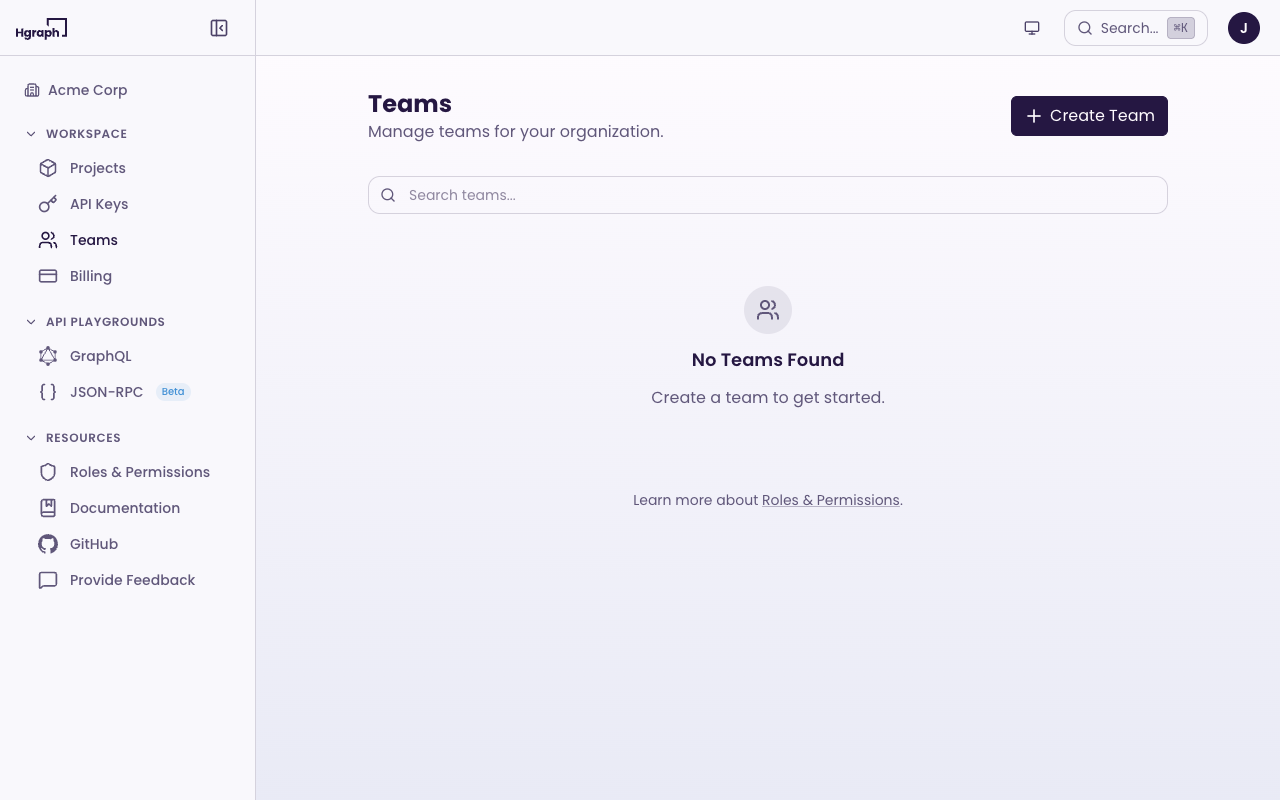
Teams allow groups of members to share access to projects and API keys. Teams are available on the Team plan and above.
Create a team
- Go to Teams in the sidebar.
- Click Create Team.
- Enter a name, URL slug, and optional description.
- Click Create.
Manage team access
From a team's detail page, you can:
- Add or remove team members
- Grant the team access to specific projects
- Grant the team access to specific API keys
- Set team roles (Admin or Member)
Team members inherit access to all projects and keys granted to the team.
Members
Members are users invited to your organization. Member management is available on the Team plan and above.
Invite a member
- Navigate to Members via the organization overview dashboard.
- Click Invite Member.
- Enter the member's email address.
- Select a role (Admin or Member).
- Click Invite.
The invited user receives an email and can accept the invitation to join your organization.
Organization roles
| Role | Capabilities |
|---|---|
| Owner | Full control. Manage all members, teams, projects. Delete the organization. Assign any role. Transfer ownership. |
| Admin | Add and remove members. Create, edit, and delete teams. Implicit Admin access to every project. |
| Member | Access resources assigned via direct project membership or team membership. Can self-remove from the organization. |
Roles and permissions
The Hgraph App uses a three-level role system: Organization, Project, and Team.
How access works
- Organization Owners and Admins automatically receive Admin access to every project.
- Direct project membership grants access at the assigned role level (Admin or Member).
- Team membership grants access to all projects the team has been given access to.
- When a user has access through multiple paths, the highest role wins.
For example, if a user is an Organization Member, a direct Project Member, and on a Team with Project Admin access, their effective role for that project is Admin (the highest of the three).
The full permissions matrix is available in the app under Resources > Roles & Permissions.
Billing
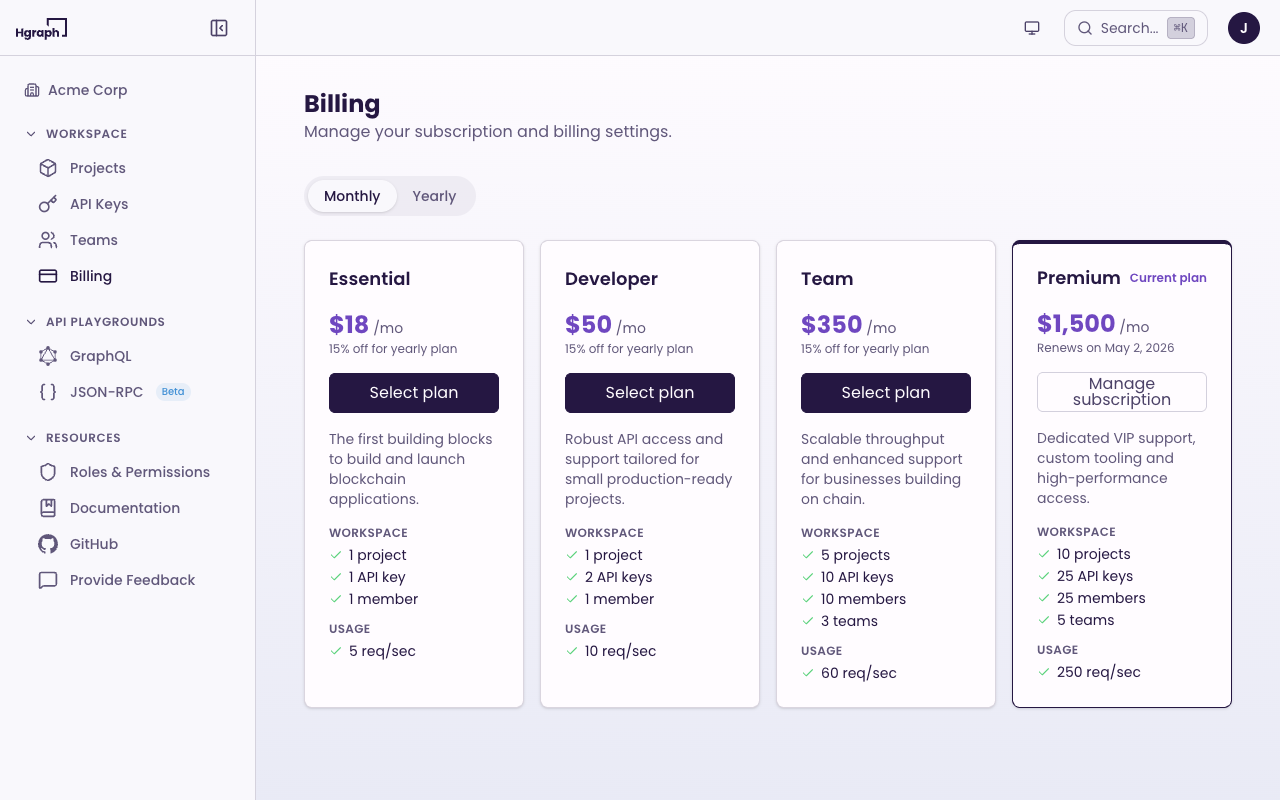
Billing is accessible to Owners and Admins only.
View your plan
Go to Billing in the sidebar to see your current plan, billing period, and renewal date.
Upgrade or change your plan
- Go to Billing in the sidebar.
- Toggle between Monthly and Yearly billing (annual plans save 15%).
- Select a plan.
- Complete checkout via Stripe.
Manage billing
Click Manage Billing to open the Stripe customer portal, where you can:
- Update payment methods
- View invoices
- Cancel your subscription
Changes take effect on your next billing cycle. See hgraph.com/pricing for a full plan comparison.