Getting Started
The Hgraph App is where you manage your organizations, projects, API keys, and billing. It includes built-in playgrounds for testing GraphQL, JSON-RPC, and REST queries against live network data.
Create an account
Go to app.hgraph.com and sign in using one of three methods:
- GitHub - click "Continue with GitHub" to authenticate with your GitHub account
- Google - click "Continue with Google" to authenticate with your Google account
- Email - enter your email address and click "Send magic link". Check your inbox, then click the link or enter the one-time code to complete sign-in.
No passwords are required. If this is your first time signing in, an account is created automatically.
Create your first organization
After signing in, create an organization. Organizations are the top-level container for everything in the Hgraph App: projects, API keys, teams, and members.
- Click Create Organization.
- Enter a name and URL slug for your organization.
- Click Create.
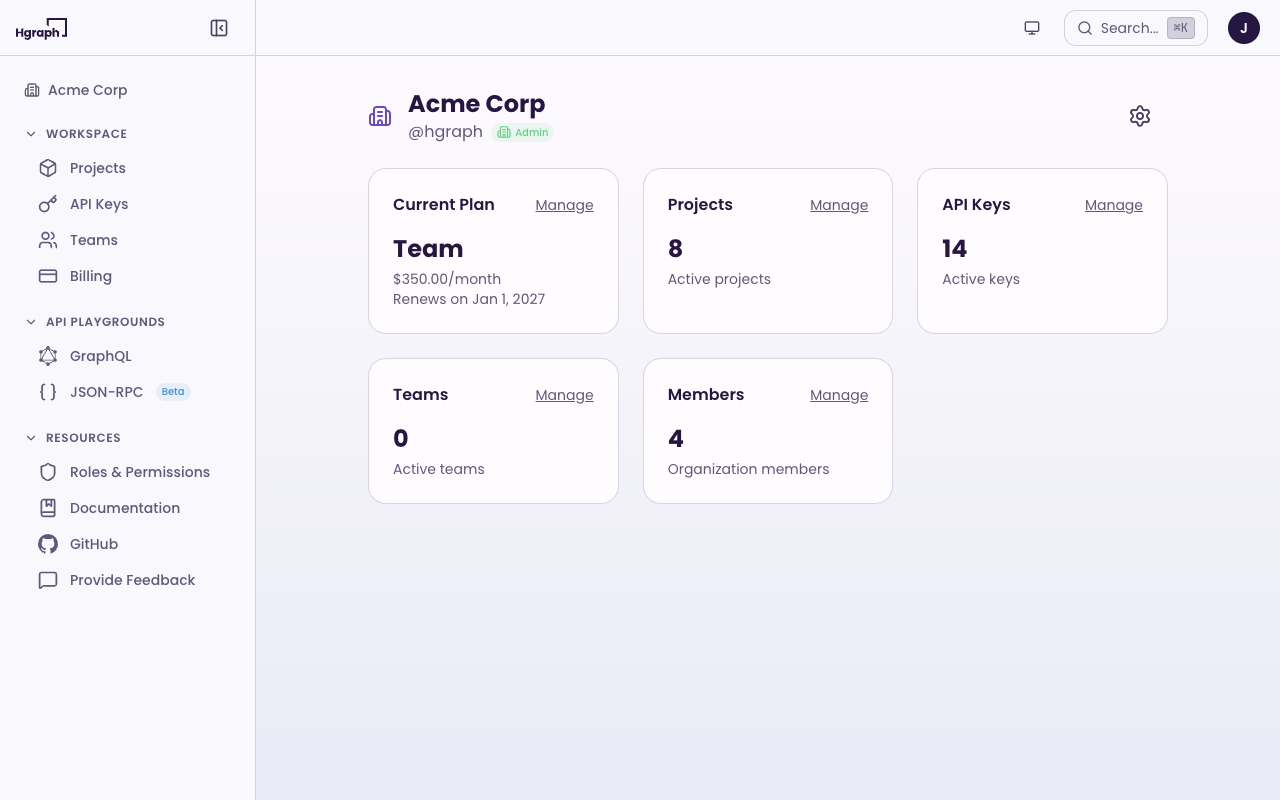
Your organization dashboard shows an overview of your current plan, projects, teams, and members.
Create a project
Projects live inside organizations. Each project has its own set of API keys and usage tracking, so you can separate production, staging, and development environments.
- Go to Projects in the sidebar.
- Click Create Project.
- Enter a name, URL slug, and optional description.
- Click Create.
Every Hgraph account includes 1 project on the free tier. Paid plans support additional projects (see quotas).
Get your API key
Your first project already has an API key — open the project from Projects in the sidebar and click the eye icon to reveal it.
Each key has two values, a Publishable Key (pk_prod_) and a Secret Key (sk_prod_). Both grant identical access, so treat both as secrets: keep them server-side, store them in environment variables, and never ship either one in client-side code or commit it to a repository. See Workspace for full details.
To create an additional API key:
- Go to Projects in the sidebar and open the project.
- Click Create API Key.
- Optionally add a nickname (e.g., "Production Backend").
- Copy your key values and store them securely.
With your API key, you're ready to start querying. Try a request using the GraphQL API, REST API, or test queries directly in the built-in playgrounds.
What's next
- Workspace - manage projects, teams, members, and billing
- Playgrounds - test GraphQL, JSON-RPC, and REST queries against live data
- GraphQL API - query indexed network data
- Hgraph SDK - build data-rich apps
- Rate limits & quotas - throughput, quotas, and data access by plan